Posted on November 28, 2025 by Fusion Connect
Slash commands in Microsoft Teams are quick text shortcuts that trigger specific actions—like setting your status to /dnd (Do Not Disturb) or starting a call with /call. These are part of a broader set of Teams commands, which also include buttons, bots, and keyboard shortcuts. Slash commands are unique because they keep users inside the chat window, reducing the need to click around. For IT leaders and tech managers, that means less context switching, faster workflows, and better use of existing Microsoft 365 tools—no added software required.

Understanding How Slash Commands Work in Microsoft Teams
Slash commands are shortcuts you type directly into the command box at the top of the Microsoft Teams window. By starting with a forward slash ( / ), users can trigger built-in actions that save time and reduce repetitive clicking. For example, typing /brb updates your availability to “Be Right Back,” and /call lets you instantly dial a team member’s phone number without switching windows.
These commands function best on the desktop and web versions of Microsoft Teams. While some basic commands work in mobile apps, the full set of available commands is often limited by platform or admin-level permissions. IT managers should be aware that not all slash commands are accessible organization-wide, depending on tenant settings or app policies.
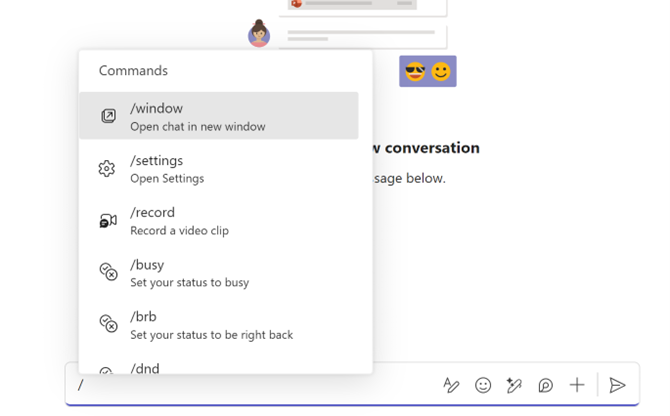
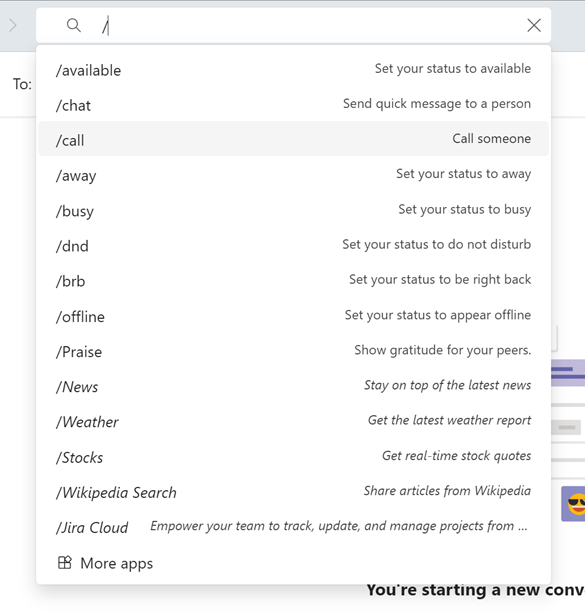 Figure 2. Example of /slash commands in the search bar.
Increasing Speed and Consistency Across Your Organization
For IT leaders looking to make Microsoft Teams work harder, slash commands support faster execution of common tasks. Whether it's launching a group chat, checking unread activity, or using /testcall before a video meeting, these shortcuts eliminate extra clicks and delays. Teams chat becomes more responsive, improving day-to-day communication.
Slash commands also help standardize how teams perform frequent actions. Instead of users taking multiple routes to join Teams meetings or manage notifications, commands guide them through consistent paths. This improves onboarding and reduces user errors—especially helpful for remote teams working across different time zones and devices.
Slash Commands That Make Work in Microsoft Teams Faster
Microsoft Teams slash commands help your staff complete tasks with fewer clicks. We’ve compiled a list of commands, grouped by function that can help improve communication, productivity, and overall efficiency—without leaving the Teams interface.
Microsoft Teams Commands to Improve Collaboration
Microsoft Teams supports real-time messaging and calling, and its slash commands make these tools faster to access. From initiating calls to checking device settings, these commands support immediate action across Teams chat and video calls.
|
Slash Command |
Function |
|
/chat* |
Send a quick message to a team member |
|
/call |
Start a voice or video call with a phone number or contact |
|
/testcall |
Check your microphone and speaker setup |
|
/leave |
Exit a team to better manage group memberships |
|
*The /chat command only supports 1:1 messages, not group chats. |
|
Slash Commands to Know Your Teammates
For managers leading large teams, quickly accessing contact details can be essential. These commands offer quick insight into roles, reporting structures, and recent activity—useful for understanding team dynamics.
|
Slash Command |
Function |
|
/who |
Find contact details, roles, and message history |
|
/org |
Display a contact's place in the org chart |
|
/activity |
Review a colleague’s recent public activity |
These commands help leadership stay informed without leaving the Teams interface or searching through Outlook or other apps.
Slash Commands to Navigate Microsoft Teams Faster
When switching between projects, users need to move around Microsoft Teams quickly. These shortcuts direct users to recent locations, channels, and apps in just a few keystrokes.
|
Slash Command |
Function |
|
/goto |
Open a specific channel |
|
/recent |
Return to a recently visited space |
|
/last |
Go to your last active view |
|
/find |
Search across Teams content |
|
/app |
Open a specific app installed in Teams |
|
You can also use @mention with installed apps to find tools without typing the full command. |
|
Slash Commands to Find Content Quickly
Even with a strong search bar, users often need to access specific messages or saved files fast. These commands are designed for quick retrieval of unread notifications or important content.
|
Slash Command |
Function |
|
/mentions* |
View all posts where you’re tagged |
|
/unread |
Display all unread activity |
|
/saved |
Open saved messages from chats or channels |
|
*This only works if you were tagged using @mention; plain name mentions won’t appear. |
|
Slash Commands to Change Your Status
Presence indicators help colleagues know when you're available. These slash commands give users the ability to adjust status settings without going through multiple menus.
|
Slash Command |
Function |
|
/available |
Set your status to available |
|
/away |
Mark yourself as away |
|
/busy |
Set your status to busy |
|
/brb |
Mark your status as be right back |
|
/dnd* |
Enable do not disturb mode |
|
/online |
Set your presence to online |
|
/offline |
Set yourself to appear offline |
|
/out |
Set an out-of-office message |
|
*You’ll still receive messages, but pop-up notifications will be paused. |
|
Slash Commands to Boost Personal Productivity
Microsoft Teams is more than a chat tool—it’s a place to manage files, schedule meetings, and work in real-time. These slash commands simplify multitasking and help users keep their work moving.
|
Slash Command |
Function |
|
/calendar |
Open your calendar to schedule or view meetings |
|
/join |
Join a public channel |
|
/files |
Open recently accessed files |
|
/wiki* |
Add a personal note in your wiki |
|
/pop |
Open your current chat or activity in a new window |
|
*The /wiki command only supports your personal wiki, not team wikis or shared spaces. |
|
Slash Commands to Get Built-In Support
MS Teams includes slash commands that support troubleshooting and learning. These can help users discover keyboard shortcuts, learn new features, or report bugs—all without leaving the app.
|
Slash Command |
Function |
|
/keys |
Display a list of Teams keyboard shortcuts |
|
/help |
Get guidance from Microsoft’s help bot |
|
/whatsnew |
Show the latest feature updates in Teams |
|
/feedback |
Submit feedback or report technical issues |
Each of these commands allows users to perform specific functions directly from the compose box, removing extra steps and improving daily workflow.
Deploying Slash Commands Across the Business Effectively
Successful adoption of Microsoft Teams slash commands depends on clear internal communication. One effective approach is to distribute a simple cheat sheet listing the most relevant slash commands for your teams. This could live in a specific channel or be pinned inside Teams chat for easy access.
Train team leads or power users first—they can model usage during meetings or in group chats. Encourage regular use during project check-ins, calls, or even when helping users with unread notifications or call quality. As Microsoft continues to release new functionality like Copilot integration or command enhancements, keep users informed to maintain adoption and engagement.
Knowing Where Teams Slash Commands Fall Short
While slash commands handle many core features, there’s currently no way to create custom slash commands natively within Microsoft Teams. Organizations needing specialized actions often rely on bots, Power Automate workflows, or custom-built Teams apps. These tools use APIs, webhook configurations, and command files to extend Teams’ functionality beyond its built-in limits.
Differences between desktop and mobile versions of Teams also affect what commands are available. Admins should pay attention to authentication settings and permissions to avoid confusion around command access. Teams meetings, video calls, and group chat functions may look different depending on device type or workspace setup.
Making Microsoft Licensing Work Harder for You
Microsoft Licensing doesn’t need to be complicated—or expensive. Fusion Connect offers flexible, scalable licensing support to help organizations get the most out of Microsoft 365, including Teams. Whether you need to simplify your license structure, reduce overhead, or integrate calling services like Operator Connect, our team is here to guide you.
Speak to Our Tech Experts
We can help you get the most out of Microsoft Teams Ask us how!
Article orignally posted November 18, 2024 by Fusion Connect.