Posted on December 23, 2025 by Fusion Connect
If you work in IT—admin, engineer, support, support specialist—you already know the look.
The one someone gives you when a Microsoft Teams call goes sideways and suddenly you are the human embodiment of “Can you fix this?”
Teams is supposed to make collaboration easy. That’s the whole deal. But when calls glitch, audio drops out, or video freezes mid-sentence like a cursed Zoom screenshot, collaboration stops dead. And before anyone blames Mercury in retrograde, the first suspect is always the network.
That’s usually the right place to start. Even if the network isn’t the problem, proving that it isn’t the problem helps you move on faster. So let’s talk about the four metrics that matter most when you’re trying to figure out why Teams feels like it’s held together with duct tape and optimism: Roundtrip Time (RTT), Jitter, Packet Loss, and Bitrate.
No mysticism. No vendor fluff. Just what “good” actually looks like.
First, a Reality Check on “Perfect” Network Metrics
Before we get into numbers, let’s be honest: there is no eternal, perfect benchmark. Software evolves. Features stack up. User expectations rise faster than bandwidth budgets.
A connection that feels “fast” today might feel aggressively mediocre a year from now. That’s just the deal. Any blog post pretending otherwise is lying to you.
That said, there are widely accepted targets that will give Microsoft Teams the best possible chance to behave itself right now. Think of these as guardrails, not commandments.
Roundtrip Time (RTT): 300 ms or Lower (150 ms Is Ideal)
RTT measures how long it takes for data to leave one device, reach its destination, and come back again. It’s measured in milliseconds, and when it gets too high, humans start stepping on each other mid-sentence.
You know that awkward moment when two people say “Sorry—go ahead” at the exact same time? That’s latency waving hello.
If RTT regularly creeps above 300 ms, you’re looking at real latency issues. Under 150 ms is where conversations feel natural and people stop accidentally interrupting each other like they’re in a bad improv class.
Jitter: 30 ms or Lower
RTT tells you the average delay. Jitter tells you how wildly that delay fluctuates.
This is where things get sneaky. You can have a connection that looks fine on paper—low RTT, decent bandwidth—but still sounds terrible if latency spikes unpredictably. Those spikes cause choppy audio, robotic voices, and the dreaded “Can you hear me now?” loop.
Anything over 30 ms of jitter is a red flag. It can mean undersized hardware, poor traffic prioritization, or Teams traffic fighting with other data and losing. Either way, it’s worth investigating before users start blaming their headsets.
Packet Loss: Keep It Below 5%
Networks break data into packets, send them on their way, and reassemble them at the other end. Most of the time, this works beautifully.
But when packets go missing, the receiver has to ask for a do-over. And real-time services like voice and video do not like do-overs.
High packet loss shows up as missing audio, frozen video, and conversations that feel like they’re skipping tracks. Video is especially sensitive here—lose enough packets and the whole stream just gives up.
Packet loss usually points to a poor connection, failing hardware, or not enough bandwidth to go around. If you’re seeing it consistently, something upstream is unhappy.
Bitrate:
- Audio: 50–100 kbps
- HD Video: 1.5 Mbps minimum (4 Mbps recommended)
Bitrate is where today’s luxury becomes tomorrow’s baseline.
HD video works at around 1.5 Mbps, but if you actually want it to look good—and stay good—4 Mbps or more is a safer target. Audio is lighter, but still needs consistency.
If bitrate dips or fluctuates, users will see blurry video and hear audio dropouts. Monitoring bitrate helps ensure Teams isn’t trying to perform miracles with insufficient bandwidth.
Making Microsoft Teams Behave Better (Without Yelling at It)
Once you know where things are going wrong, there are practical ways to improve performance.
Quality of Service (QoS)
QoS is how you tell your network, “This traffic matters more.”
By categorizing and prioritizing voice and video traffic, QoS ensures Teams gets the bandwidth it needs—even when everything else on the network is busy. It’s one of the most effective ways to stabilize call quality, especially in mixed-use environments.
If Teams traffic is competing with everything else equally, it’s going to lose at the worst possible moments.
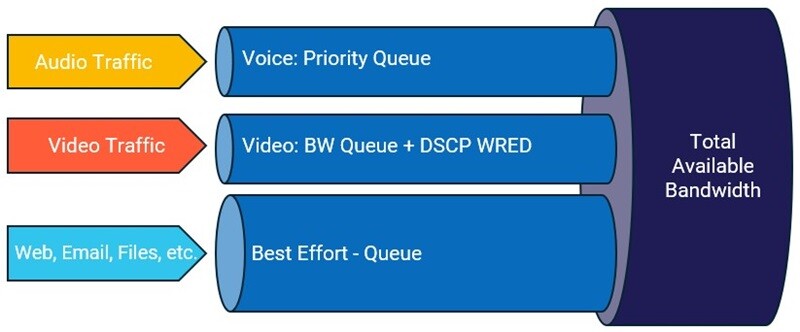
Figure 1. Network traffic prioritization by category showing reserved capacity for voice and video data.
Reduce Over-Subscription
Most networks are designed with the assumption that not every device will max out at the same time. That assumption used to be pretty safe. Now? Less so.
More devices, more video, more cloud services—it adds up. If congestion is the issue, upgrading network capacity or hardware may be the only real fix. No amount of tuning can overcome a network that’s simply outgrown its design.
The Takeaway
Knowing what “good” looks like for Teams network metrics helps you troubleshoot faster—and sometimes proves that the network isn’t the villain, which is just as valuable.
Once you can rule things out confidently, you can move on to the real issue instead of guessing.
Fusion Connect helps businesses get the most out of Microsoft Teams, from optimizing networks for voice and video to adding advanced features like SMS/MMS texting, automated attendants, contact center solutions (CCaaS), call recording, and AI-powered transcription.
If you’re planning a Teams deployment—or trying to stabilize one that’s already live—we can assess your network, flag potential issues, and help you build something that actually holds up under real-world use.
Speak to Our Tech Experts
We’ll help you make your network work with Teams, not against it. Ask us how!
Want to dig deeper? You might also like:
- Minimum internet speeds for Microsoft Teams (blog post)
- Calling services for Microsoft Teams (web page)
- Business VoIP Phone Services in Teams (blog post)
Because fewer “Can you hear me?” moments is something we can all get behind.